Affiliate links on Android Authority may earn us a commission. Learn more.
Google just replaced Gemini Gems with Skills. Here's how to use and master them
Oct 6, 2026 — 5:00 AM ET



Google introduced Gems way back in mid-2024, before the agentic AI obsession. Gems were supposed to be AI helpers with a personality and a unique goal. You could have a Gem that helped you cook, code, or serve as your language learning partner. They all had their own chat windows and instructions, essentially turning them into mini-apps.
But that didn’t work. Gems were their own silos. They could help you complete repeating tasks, sure, but you had to find and open the Gem conversation first. So in true Google fashion, it’s gone, joining the ever-growing graveyard of products Google abandoned. And in its place comes Skills.
If you use Claude or Perplexity, you might be familiar with this concept. But if not, here’s a rundown on what’s changing — and how to start using Gemini Skills today.
Did you ever use Gems?
Why Google is moving from Gems -> Skills

Gems lived in their own silos, in the sidebar, and were trivially easy to forget. When they came out, I played around with them and quickly forgot they existed. The way consumers use AI chatbots has evolved. With a long context window, it makes sense to continue working on multiple aspects of a project in the same chat window. What you want is to use your pre-configured gems and customized prompts anywhere. That’s what Skills does.
Once configured, you can call up a skill from any chat, and invoke it using the data from the current chat. And this isn’t limited to a single skill or chat. You can stack up skills, chaining up a step-by-step automation system.
For example, you might be working on researching a specific module related to your work or college in a chat. You can use one skill to start the research based on parameters you’ve already narrowed down. Then, another skill can take all that information, format it into an easy-to-read digest, and write it in your own style (based on data from your Google account activity). Yet another skill can then take that digest and send it to your team members via Gmail, or create a Google Doc based on it. This can go on and on, and it’s only truly limited by your unique requirements and workflows.
While I don’t use AI for writing (part of my personal AI ethics policy), I do use it for brainstorming ideas, creating unique angles, and doing the menial tasks like generating keywords and SEO descriptions based on my text. And this is where Gemini’s Skills, to me, are really helpful. Previously, I fed my preferences into Gemini’s Memory file, and now, instead of relying on Gemini’s recall, I can give specific instructions for each task.
How to build and use your own Gemini Skills

How to make a skill? Well, just ask Gemini. Yes, there is a dedicated Skills page in Settings where you can see recommended skills, ones you’ve created, and even your Gems from the before times.
True to its form, Skills is built into the chat interface. So open a chat, type “create a skill for me that does,” and ramble on. You can even use voice typing to give more instructions. As with any AI prompt, the more detailed it is, the better your chances of success.
Then, press Enter and let Gemini do its thing. It will create a new skill for you, with detailed instructions, surpassing what you rambled on about. For example, I asked Gemini to create a skill for me that proofreads text. I’m what you call a silly-mistakes writer. In my flow, I might make a silly mistake or two that my eyes gloss over during proofreading. Instead of burdening my editors, I usually use something like Grammarly Pro, Claude, or Gemini to go through the article and point out silly mistakes that I then fix myself (I don’t trust an AI model to just fix typos without introducing new issues in the process).
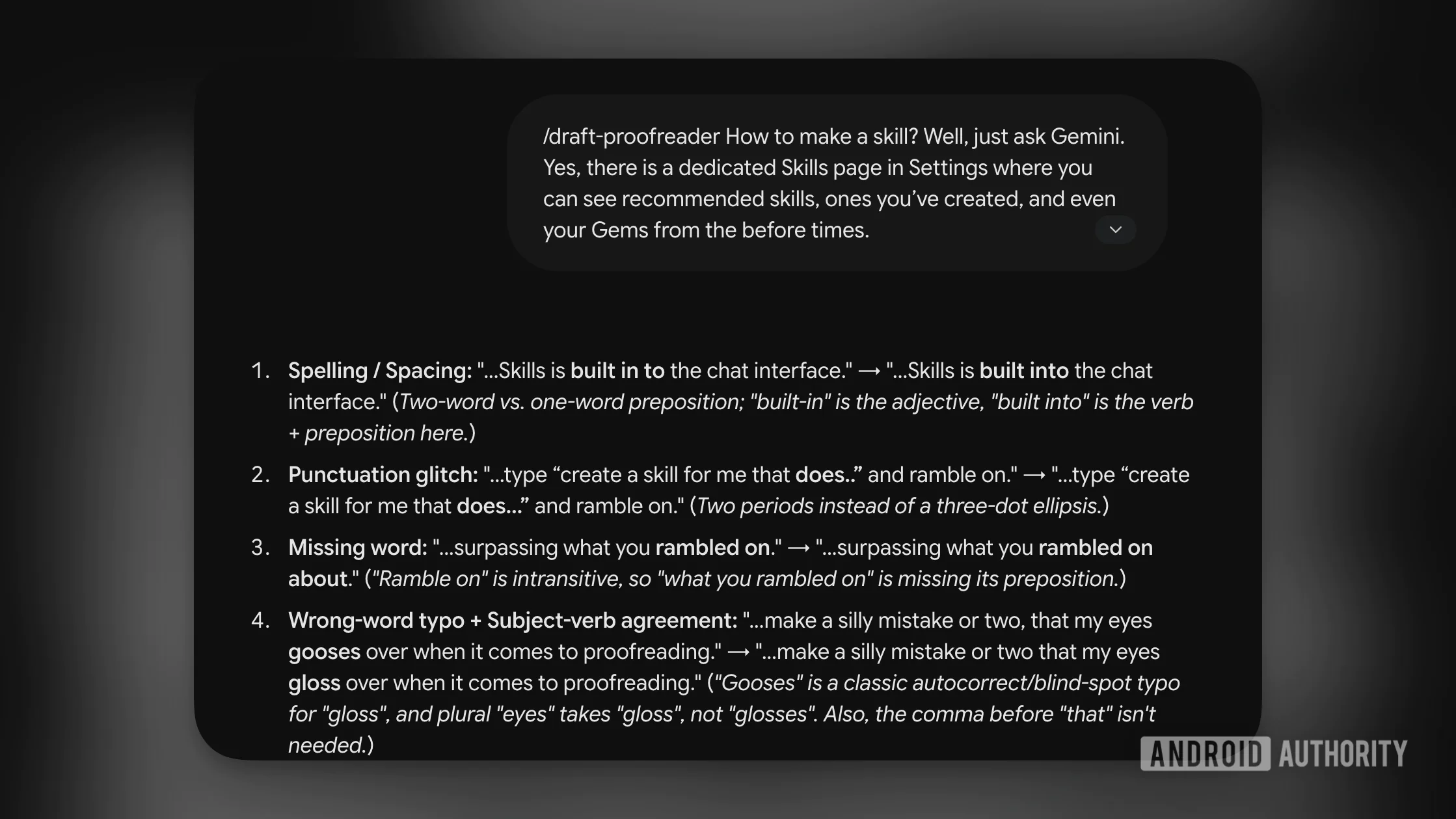
Gemini made a skill called “draft-proofreader” for me (I can change the name if I’d like). Now, all I have to do is paste in the draft text, use the “/“ command to run the draft, and wait for the results.
And here’s a pro tip: If you simply enter the forward slash command in the text box, you will see a list of all your Skills.

If you want to be particular about the skills, it’s best to create one manually. Go to Settings -> Skills -> Create Manually. Here, you will see sections to give your skill a name (no spaces between words, hyphens only), add a description, and then add all your detailed instructions.
5 Gemini Skills you should try

Given how simple it is to make Gemini Skills, you should try it out for yourself. It will depend highly on my workflow. For me, skills include online research, editing, and writing. For you, it might be about science, technology, arts, or plain idea generation.
If you can take repeated action based on a similar dataset or question, you should try to turn it into a skill. Here are some ideas to get you started.
Meeting-prep: If you use Gmail, Google Docs, and Meet, you can ask Gemini to create a workflow based on the next Google Calendar or Google Meet session. Based on the meeting, it, can go to your Gmail and surface relevant recent threads and insights from documents related to the project.
Repurpose: If you find yourself reshuffling content to fit into different formats, create a skill dedicated to it. Ask Gemini to take a long article or a listicle and format it as an X or LinkedIn post, a script for an Instagram Reel, or a Facebook post.
Distiller: Create a skill that pulls in Slack threads, Gmail messages, or documents and presents you with a bullet-point list of main learnings, actionable items, and highlights the decisions already made/tasks already accomplished.
De-jargon: Ask Gemini to go through any text (a pitch or an email) and remove all the telltale signs of AI writing (trust me, Gemini already knows). This presents a cleaner prose that you can actually read, like a real human person.
Stack skills together: A big side effect of moving from Gems to Skills is that they are stackable. For example, with a command like /fact-check-links + de-jargon on the same prompt, you can ask Gemini to first fact-check all the claims and URLs in an email or as a submission, then run it through an anti-AI filter to give you content that is already cross-checked and down to the basics.
Conversation
Read what readers said or add your take.