Affiliate links on Android Authority may earn us a commission. Learn more.
Download the Google Pixel 11 wallpapers here
Aug 13, 2026 — 7:25 AM ET


The new Pixel 11 series is great, especially if you’re a fan of Google’s idealized, nature-inspired stock wallpapers. These are timeless, clean, and will look great on any device. Luckily, wallpapers are just images, and you can use them on any device that lets you change the background. It’s just a matter of finding the image files with a good resolution, and we have them for you!
We’ve managed to get hold of the Google Pixel 11 wallpapers thanks to our friends from YTECHB. Each comes with a set of corresponding colors that match the available color versions. Want in on the fun? Keep reading to get these wallpapers on your phone ASAP!
Download the Google Pixel 11 series wallpapers here

First things first; let’s tell you how this works. You shouldn’t simply right-click (or tap and hold) on the images below and download them straight to your device. These are previews created for demonstrational purposes only. The images you see right below have been compressed and optimized to keep our website speedy, so they won’t look as amazing as full-resolution wallpapers.
To get the right files, scroll past the image previews and click the download button right below them. This will redirect you to a Google Drive folder with all the full-size wallpapers.
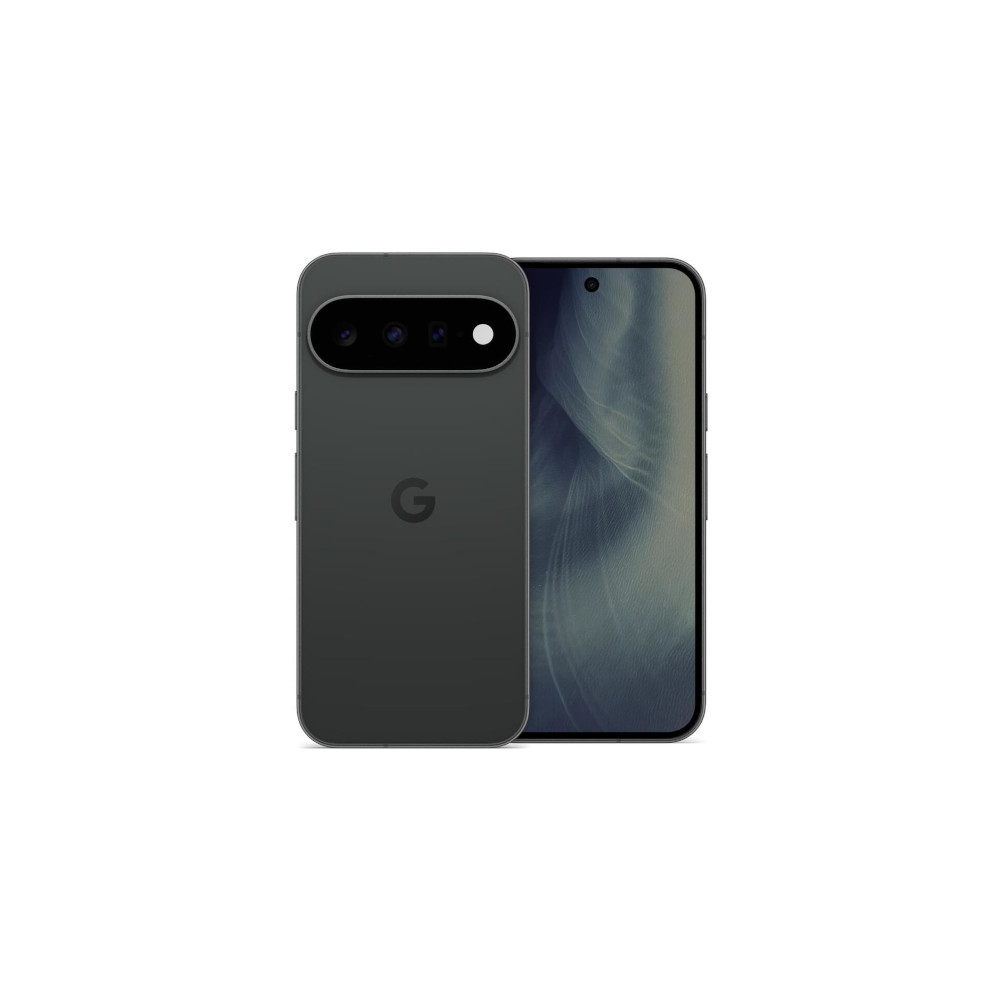
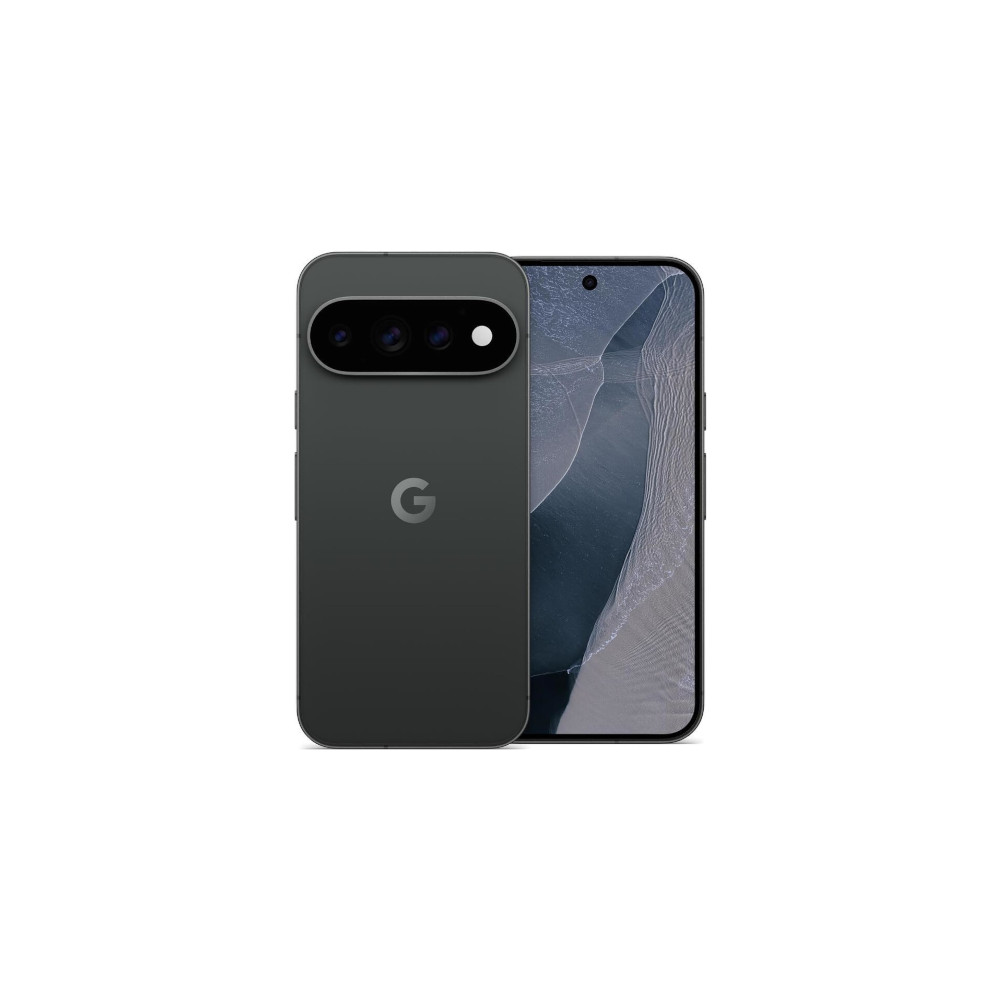
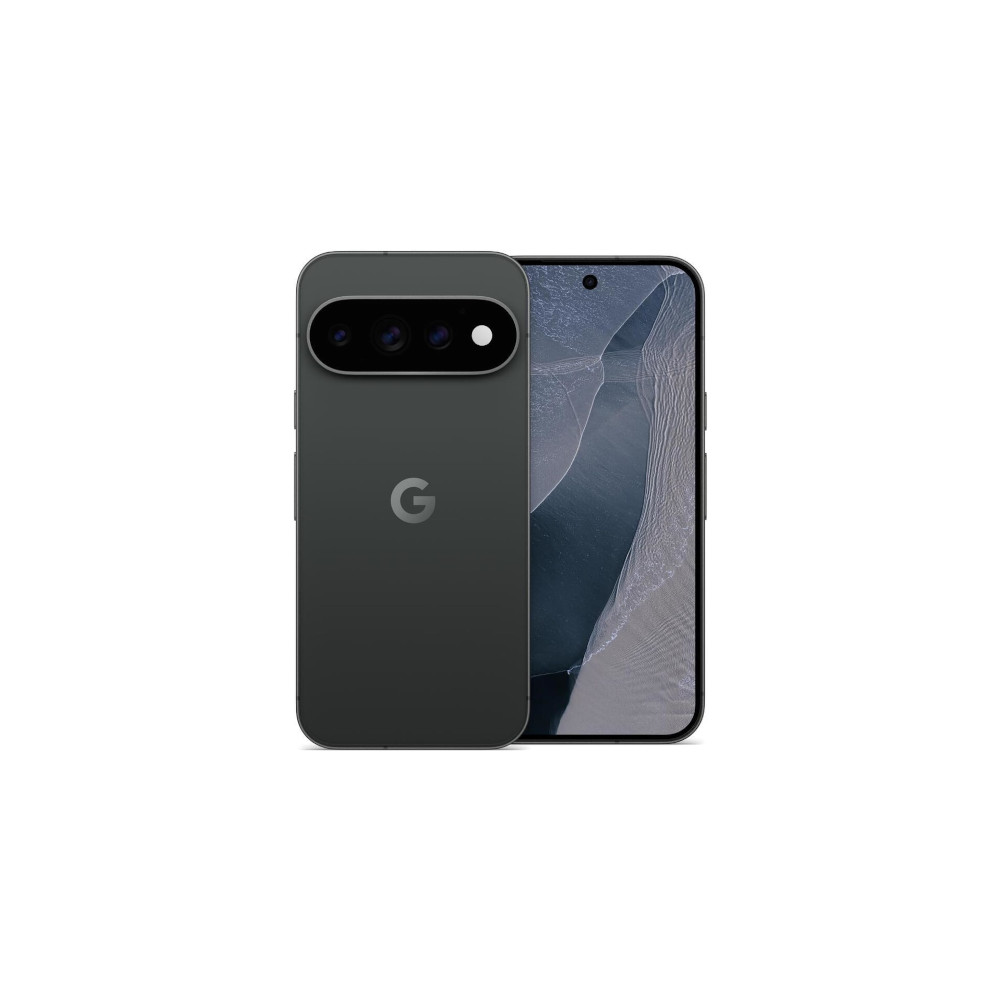
Pixel 11 wallpapers
Pixel 11 Pro and Pro XL wallpapers
Pixel 11 Pro Fold wallpapers
How to set the Google Pixel 11 wallpapers on your phone

Again, wallpapers are simply images, so if you like these, you can use them on any smartphone, tablet, computer, or other device that lets you customize the background. If you’re new to this, we will give you some guidance and show you how to set these wallpapers on both Android and iOS devices, since they were designed with mobile devices in mind.
Let’s start by getting the wallpaper file to the device you want to use it on. Skip this step if you downloaded the wallpaper straight onto it. Otherwise, you can use any other device to save the file, and then use any viable transfer method to get it to its final destination. You can use Bluetooth, QuickShare, AirDrop, a physical storage device, or even a cloud storage solution like Google Drive. Whatever you do, try to avoid using any services that compress images, such as sending them to yourself over Facebook Messenger and such.
Once you have the file on your desired device, follow the steps below to set the Pixel 11 wallpapers.
How to set a wallpaper on Android:
- Launch the Settings app.
- Select Wallpaper & style.
- Tap on More wallpapers.
- Find and select your Pixel 11 wallpaper.
- Customize the wallpaper, then hit Set Wallpaper.
- Choose whether you want to set the wallpaper on your Home screen or Lock screen (or highlight both).
- Pick Set.
How to set a wallpaper on iPhone:
- Open the Settings app.
- Tap on Wallpaper.
- Select Add New Wallpaper.
- Find and select the Pixel 11 wallpaper you want to set.
- Customize your wallpaper and settings to your liking, then tap on Add.
- Hit Set as Wallpaper Pair.
Editor’s note: These instructions were put together using a Google Pixel 8a running Android 16 and an Apple iPhone 17 Pro Max running iOS 26.5.2. Steps may differ, depending on your device and software version.
Frequently asked questions
Google Pixel 11 series wallpapers vary depending on which device they are made for. Base Pixel 11 wallpapers measure 2,160 x 2,424 pixels. They increase to 2,688 x 2,992 for the Pixel 11 Pro XL. The Pixel 11 Pro Fold wallpapers are 2,650 x 2,208 for the larger screen.
These Pixel 11 wallpapers are JPEG image files, so you can use them on any device that allows you to change the background image. Of course, they need to support JPEG files, too, but JPEG is the most widely used image format, so that is nearly guaranteed.
Thank you for being part of our community. Read our Comment Policy before posting.